Ask Us Everything Recap: Bringing Enterprise Storage Simplicity to Azure
What happens when you take the enterprise storage capabilities IT teams rely on and deliver them as a fully managed, Azure-native experience? That question was at the heart of our latest Ask Us Everything, focused on Everpure Cloud Azure Native for Azure VMs. And judging by the questions from attendees, storage admins and cloud practitioners are thinking beyond simply moving workloads to Azure. They’re asking how to get there without trading familiar enterprise capabilities for higher costs, more operational overhead, or another collection of storage tiers to manage. Everpure experts David Stamen, Nick Scuola, and Joe Houghes dug into those questions—and the conversation surfaced several useful takeaways. “Azure already has storage. What makes Everpure different?” Cloud storage can mean navigating different offerings, tiers, feature sets, and regional availability. Joe contrasted that with the enterprise storage model Everpure customers know: capabilities delivered consistently through the Purity OS, rather than requiring administrators to continually determine which storage option provides which feature. Everpure Cloud for Azure Native brings capabilities including thin provisioning, deduplication, compression, performance, and availability into an experience designed to operate natively as an Azure service. Customers can deploy and consume it through Azure Marketplace, and get benefits they’re used to with their on-prem Everpure, all without managing the underlying storage infrastructure themselves. That distinction matters: IT gets enterprise-grade block storage, without turning cloud storage into another infrastructure management project. “How do I balance performance with cost?” Attendees naturally wanted to know about performance tiers—and the answer illustrated the service’s approach to simplicity. Instead of selecting among traditional on-prem array models or architecting around underlying infrastructure, customers simply choose the performance they need. The experts described a slider-based model for adjusting storage-pool performance, with Everpure handling everything behind the service. That abstraction becomes particularly valuable as Azure evolves. The panel discussed how underlying Azure storage improvements have previously delivered both performance gains and lower infrastructure costs. With a managed service, Everpure can incorporate infrastructure changes behind the scenes, rather than requiring customers to redesign their environments every time the cloud platform changes. As Nick summarized, the objective is the outcome: deliver the service level that customers need, while Everpure handles how it gets delivered. “Can cloud storage actually help reduce our Azure spend?” Cost was a recurring theme. We polled attendees, and half responded that they were “very concerned” about their Azure storage spend. One important lever that can help lower costs is data reduction. Thin provisioning, deduplication, and compression can reduce the physical capacity required, although results depend heavily on workload and data type. The experts noted that the majority of traditional application data benefit greatly from data reduction capabilities built into Everpure Cloud, while already-compressed or encrypted data naturally offer less reduction. The consumption model is simplified, too. Everpure Cloud for Azure Native combines the service and underlying infrastructure into a Marketplace purchase rather than separating software licensing from Azure infrastructure costs. Customers simply choose how much capacity and performance they need, and then receive it as one service and one bill. “Does this simplify my storage management job?” Perhaps the most important answer of the session: Yes! The experts described storage deployments that can be stood up in hours rather than turning implementation into a weeks- or months-long project. For example: once a storage pool is created, volumes can be connected to workloads using Azure VM extensions, simplifying the process of getting storage in front of an application. For experienced storage practitioners, that may be the biggest shift. Everpure Cloud for Azure Native isn’t about recreating every storage-management task in Azure. It’s about abstracting more of those tasks away so teams can concentrate on all their other work: applications, data, migrations, automation, and new initiatives. Or, as Nick put it during the session: the goal is to help free up customers to manage their applications and data—not their storage. That’s a cloud operating model storage admins can get behind. Check out this and all our other Ask Us Everything sessions. And, keep the conversation going by jumping into the Everpure Community.69Views1like0Comments
Ask Us Everything about Everpure Cloud Azure Native for Azure VMs
August 7 | Register Now Got questions about reducing storage costs and improving efficiency? Get answers. This month we’re diving into Everpure Cloud Azure Native for Azure Virtual Machines (VMs). You’ll learn how it delivers enterprise-grade block storage through a fully managed, Azure-native experience. As organizations look to balance cloud costs, performance, and operational simplicity, infrastructure teams need storage that scales with their workloads without adding complexity. You’ll get an overview of how Everpure Cloud Azure Native enables you to: Reduce cloud storage costs up to 40% with efficient consumption and pay-for-what-you-use pricing Scale performance up or down without disruptive infrastructure changes. Improve operational efficiency with faster provisioning and streamlined snapshot management. Combine the native Azure experience with enterprise-grade storage services and support. Bring your questions for our experts, who are ready to discuss cloud storage strategies, workload requirements, and how to optimize Azure environments with greater efficiency, flexibility, and control. Register Now!95Views0likes0CommentsJoin Everpure Cloud at Pure Accelerate 2026
If you're coming to Pure Accelerate, make time for the Everpure™ Cloud sessions. This year's lineup brings together breakout sessions, flash talks, and a community meetup focused on modern cloud storage across Azure and AWS, workload design, hybrid cloud strategy, and practical ways to improve cost efficiency and operational simplicity. Whether you're evaluating how to support Azure VMs at scale, looking for better patterns for hybrid workloads, or trying to bring more predictability to cloud storage costs, these sessions are designed to help you move from strategy to execution. Why attend the Everpure Cloud sessions? Cloud teams are under pressure to do more than just migrate. They need to control costs, simplify operations, and build architectures that can adapt as business needs change. At Pure Accelerate, the Everpure Cloud sessions will focus on exactly those conversations, with content spanning architecture, scale, FinOps, storage operations, and real-world workload guidance. This is a strong opportunity to hear how Everpure Cloud supports modern cloud environments across Azure, AWS, and hybrid use cases, while giving infrastructure teams more flexibility in how they scale and manage storage. Featured Everpure Cloud sessions at Pure Accelerate Breakout sessions Modern Azure Storage with Everpure Cloud: Architecture, Scale & FinOps — Thursday, June 18, 1:45–2:30 PM PT. Configuring Workloads for Everpure Cloud: Architectures, Patterns, and Gotchas — Thursday, June 18, 1:45–2:30 PM PT. Maximizing Hybrid SQL Server 2025 on Azure with Everpure Cloud — Wednesday, June 17, 2:45–3:30 PM PT. These breakout sessions are ideal for attendees who want a deeper look at architecture decisions, workload best practices, and ways to align cloud storage performance with cost and scale requirements. Flash talks Everpure Cloud Azure Native for Azure VMs in 15 Minutes — Thursday, June 18, 2:45–3:05 PM PT. Accelerating Storage Operations with Everpure Cloud — Thursday, June 18, 3:15–3:35 PM PT. Evolving Everpure Cloud Value: A Smarter Hybrid Cloud Approach for Healthcare— Thursday, June 18, 12:30–12:50 PM PT. Public Cloud Experience, Private Cloud Economics— Thursday, June 18, 12:00–12:20 PM PT. If you want high-value takeaways in a shorter format, these flash talks are a great way to quickly explore how Everpure Cloud can help streamline operations, support Azure VM environments, and improve the economics of cloud storage. Community session Community Meetup: You're Moving to the Cloud: Now What? — Wednesday, June 17, 5:30–6:30 PM PT. This meetup is a great fit for anyone looking to exchange ideas with peers, hear different perspectives on cloud adoption, and join a broader conversation around the challenges and opportunities that come with moving to the cloud. Meet the Everpure cloud team at booth If you're in Las Vegas for Pure Accelerate, stop by the Everpure Cloud showcase booth to continue the conversation in person and to learn how organizations are reducing storage costs, simplifying operations, and scaling hybrid cloud environments more efficiently. Learn more To explore the Everpure Cloud portfolio in more detail, visit the Everpure Cloud webpage. For deeper technical guidance, check out these Knowledge Portal resources: Everpure Cloud Dedicated for Azure documentation Everpure Cloud Dedicated for AWS documentation Everpure Cloud Azure Native documentation Add Everpure Cloud to Your Pure Accelerate Agenda If cloud cost optimization, operational simplicity, and scalable storage architectures are priorities for your team, be sure to add these sessions to your Pure Accelerate schedule. We look forward to seeing you there. Ready to join us in Las Vegas? Register now for Pure Accelerate 2026 and start building your agenda. We look forward to seeing you there.380Views2likes0CommentsUsing Azure Backup with SQL Server on Azure VM with PSC Dedicated volume
This post details a brief test of Azure Backup for SQL databases. The objective was to evaluate Azure's native backup solution when the SQL Server database, residing on an Azure Virtual Machine, had its data files stored on a Pure Storage Cloud (PSC) Dedicated volume. As a disclaimer, many variations of this test can be done and results may vary, intention here is only to record my recent experience with the technology. The setup I set-up the following environment for the test: PSC Dedicated V20MP2R2 deployed into West Europe region Azure VM Standard D8ds v5 (8 vcpus, 32 GiB memory) running Windows Server 2019 Datacenter gen 2 MS SQL 2019 evaluation edition installed manually on the VM A connection was made between PSC Dedicated and the SQL VM, with MPIO enabled on the VM and one iSCSI session established to each controller. On the PSC Dedicated, I mounted 1TB volume to the host, which I then formatted to NTFS with 64k allocation unit size and mounted as drive F: on the Windows OS. To populate the SQL server with test databases, I made an empty testDB and downloaded 2 sample databases from MS site (AdventureWorks and AdventureWorksLT). The PSC Dedicated volume (F:) was used as the Data Directory of the SQL Server. On the Azure side, Recovery Services Vault (via Backup and Site Recovery from the Marketplace) was created and the VM running the SQL server discovered. The service installs an agent on the VM, enabling it to discover SQL databases instances. Furthermore, an NT Service\AzureWLBackupPluginSvc account used for orchestration of the backup is created on the SQL Server side. The backup For the purpose of the test, I set only a basic policy for all our databases. All three were discovered without issues (along with default ones). Assigning backup policies to databases creates backup items. These can be reviewed on the Azure Portal. Similarly for backup jobs, navigating to the Vault resources allows to review the type of operation (configuration, type of backup etc.) and status. In this case, all completed as scheduled (including an additional manual backup created separately). Another place where it is possible to review the state of the backup is Azure Business Continuity Center. The Restore Testing the restore is a crucial part of any backup, as without that, all we have is a Schrodinger's backup - it might work or it might not. In the testDB I created a small sample table. This only contains a few names as examples. I ran a manual backup of the testDB to capture its current state. Then deleted an item. Bye Bob. Confirmed Bob is gone. Afterwards, I run the restore operation, selecting the manual backup created in the previous step. The restore operation was triggered. And after successful completion, Bob was back. The restore can also be confirmed in the Azure portal. The Summary The testing recorded above indicates the Azures Backup for SQL Server running on Azure VM can be used to discover databases within the SQL instance and help with setting up protection, even if the data resides on an external storage such as Pure Storage Cloud Dedicated. As mentioned in the disclaimer in the beginning of this post however, there may be scenarios that could show different results, so always run tests before committing any decision to production environments.123Views0likes0CommentsUsing Azure Resource Locks with Pure Storage Cloud Dedicated
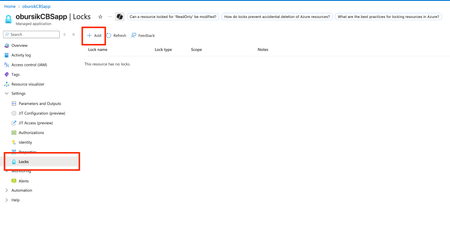
In any cloud environment, human error is a significant risk to the stability of production systems. A mistaken click in the portal or a misconfigured script can lead to the accidental deletion of critical infrastructure, causing downtime and potential data loss. This is the exact problem that Azure Resource Locks are designed to solve. Think of them as a simple but powerful safety net for your most important Azure resources. When applied to a Pure Storage Cloud Dedicated (PSC Dedicated) managed application, these locks are an essential governance tool. A PSC Dedicated array isn't a single resource but rather a collection of virtual machines, managed disks, and network components working together. Accidentally deleting or altering any part of this managed application could compromise the entire storage array and the applications that rely on it. By applying a lock, you create an intentional barrier, forcing administrators to consciously remove it before making a destructive change. This simple step helps safeguard your mission-critical data, prevent service interruptions, and ensure the operational integrity of your storage environment. Understanding Azure Resource Locks A resource lock prevents users from accidentally deleting or modifying your Azure resources. Even users with the Owner role for a subscription cannot delete or modify a resource if it has a lock applied. There are two main types of resource locks: CanNotDelete (often shown as Delete in the Azure Portal): This lock means that authorized users can still read and modify a resource, but they can't delete it. This is the recommended lock level for the PSC Dedicated managed application. ReadOnly: This lock is more restrictive. Authorized users can only read a resource; they cannot modify or delete it. This lock is generally not recommended for PSC Dedicated, as it can interfere with normal management and scaling operations performed by the Pure Storage support team or by automated processes. Please refer to the Microsoft Learn documentation for more information. How to Apply a Lock to Your PSC Dedicated Managed Application While you can apply locks to individual resources, the best practice for PSC Dedicated is to apply the lock to the entire managed resource group. This ensures all components are protected. Method 1: Using the Azure Portal (The Easiest Way) Navigate to your PSC Dedicated Managed Application: In the Azure Portal, search for and select your Pure Storage Cloud Dedicated instance. Go to the Locks Blade: In the left-hand menu for your PSC Dedicated resource, find and click on Locks. Add a New Lock: Click the + Add button at the top of the Locks blade. Configure the Lock: Lock name: Give your lock a descriptive name (e.g., PSCDedicated-DoNotDelete-Lock). Lock type: Select Delete. Notes: It's a good practice to add a note explaining why the lock is in place. Save the Lock: Click OK to apply the lock to your managed application. Review the Lock is in place Try to delete the PSC Dedicated managed application See that an error message appears, confirming the Lock is in place and does prevent accidental deletion of the Managed application of the PSC Dedicated array Method 2: Using Azure PowerShell For those who prefer a command-line interface, Azure PowerShell provides a straightforward way to manage locks. To apply the lock using Azure PowerShell, use the New-AzResourceLock cmdlet. You will need the following information: New-AzResourceLock -LockName "PSCDedicatedLock" ` -LockLevel CanNotDelete ` -ResourceName "YourPSCDedicatedInstanceName" ` -ResourceType "Microsoft.Solutions/applications" ` -ResourceGroupName "YourApplicationResourceGroup" To remove the lock later, you can use the Remove-AzResourceLock command. Method 3: Using Azure CLI The Azure Command-Line Interface (CLI) is another popular method for managing Azure resources. The process here would be: az lock create --name "PSCDedicatedLock" \ --lock-type "CanNotDelete" \ --resource-group "YourApplicationResourceGroup" \ --resource-name "YourPSCDedicatedInstanceName" \ --resource-type "Microsoft.Solutions/applications" \ --notes "Prevent accidental deletion of PSC Dedicated Managed Application" To remove the lock, you would use the az lock delete command. Final Thoughts Applying an Azure Resource Lock is a simple, no-cost action that adds a powerful layer of protection to your Pure Storage Cloud Dedicated deployment. It's a fundamental step in good cloud governance that helps ensure your critical storage infrastructure remains secure and available. By taking a few moments to configure a CanNotDelete lock, you can prevent a costly mistake and maintain the operational integrity of your environment.131Views0likes0CommentsAzure lovers, you'll like this one...
☁️ Did everyone catch the big cloud news at last week's Accelerate? Pure Storage Cloud for Azure Native is now GA! Thats right - it's here! You can now tap into Pure's block storage directly inside azure-no extra layers, no hassle. It works just like the rest of your Azure services but with the simplicity and efficiency you expect from Pure Storage. If you are thinking about how to get more out of Azure, definitely give 👉 this blog a read.187Views1like0CommentsPurely Cloud Podcast - CBS on Azure Technical Deep Dive
Together with vjirovsky we hosted a podcast episode where we discussed CBS on Azure architecture and best practices. Have a listen here: https://soundcloud.com/user-917746545/purely-cloud-guest-series-cbs-on-azure-technical-deep-dive-and-deployment-best-practices121Views1like0Comments