Azure Red Hat OpenShift with Everpure Cloud
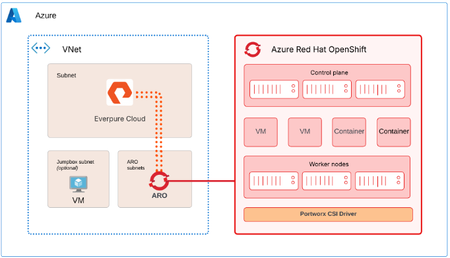
Azure Red Hat OpenShift (ARO) can use Everpure Cloud for persistent block storage, for VMs and containers. Both Everpure Cloud options - Everpure Cloud Azure Native and Everpure Cloud Dedicated are certified with ARO, and the cluster-side setup is nearly identical for both. This post covers the architecture, configuration sequence, and the checks that catch most problems early. Two storage options, one ARO procedure Everpure Cloud Dedicated is an array you deploy into your Azure subscription. Everpure Cloud Azure Native is delivered through the Azure portal, where you deploy a Storage Pool into a delegated subnet in your own Azure Virtual Network. With Azure Native you manage the array through the Platform Console, which gives you the Purity GUI, REST API, and CLI. It's disabled by default and you enable it per Storage Pool. With Dedicated you use the Purity interface directly. Architecture ARO provides the compute platform for VMs and containers. The Storage Pool (or Dedicated array) provides persistent block storage, and PX-CSI connects the ARO worker nodes to it to provision and manage volumes. The solution uses two paths. Management path. PX-CSI talks to the Purity management endpoint to create and manage volumes. With Azure Native, the Platform Console is how you get that endpoint. Data path. iSCSI traffic flows between the ARO worker nodes and the storage over the Azure virtual network. Deploy the ARO cluster and the storage in the same Azure region and virtual network. Put ARO in its dedicated subnets and the Azure Native Storage Pool in a separate subnet delegated to the Everpure Cloud service. A jump host VM is optional, and it's handy for reaching both the cluster and the Platform Console. For the data path, keep it short and boring. Everpure's field guidance is no virtual network peering and no user-defined routes or virtual appliances between the workers and the storage. Walkthrough Enable the Platform Console (Azure Native only) In the Azure portal, open the Storage Pool, go to Settings, then Platform console, and set it to Enabled. Pick the access methods you need (GUI and REST API, and optionally SSH) and select Configure. Copy the management IP address and the cloudadmin user name from Connection details, then generate a one-time password. It's shown once, so copy it before you close the dialog. Browse to https://<management-IP-address>, sign in as cloudadmin, and create a local administrator account right away. cloudadmin is only for first access. Make sure your Network Security Group allows TCP 80 and 443 for the GUI and REST API, and TCP 22 if you enabled SSH, and limit those rules to your management addresses. Prepare the OpenShift cluster Log in to the cluster from your Azure VM, create the Portworx namespace, and turn on user workload monitoring so OpenShift can scrape Portworx metrics. RESOURCE_GROUP="<ARO cluster resource group name>" CLUSTER_NAME="<ARO cluster name>" ADMIN_PW=$(az aro list-credentials --name $CLUSTER_NAME \ --resource-group $RESOURCE_GROUP --query "kubeadminPassword" -o tsv) API_URL=$(az aro show --name $CLUSTER_NAME \ --resource-group $RESOURCE_GROUP --query "apiserverProfile.url" -o tsv) oc login $API_URL -u kubeadmin -p $ADMIN_PW oc create namespace portworx apiVersion: v1 kind: ConfigMap metadata: name: cluster-monitoring-config namespace: openshift-monitoring data: config.yaml: | enableUserWorkload: true Apply that with oc apply -f. Then, in the ARO web console, go to Ecosystem -> Software Catalog, search for Portworx Enterprise, and install it into the portworx namespace. Don't create a StorageCluster yet. It comes after the worker nodes and the credentials are ready. Configure worker nodes PX-CSI attaches volumes over iSCSI, so the workers need multipath and udev settings that match Everpure's Linux recommendations. Create a multipath.conf with "user_friendly_names no" and "find_multipaths no" (each controller has a single path), and a udev.rules file with the recommended queue depth and tuning. The same two files go on every worker. Base64-encode both with base64 -w0, and wrap them in a MachineConfig. apiVersion: machineconfiguration.openshift.io/v1 kind: MachineConfig metadata: name: 98-worker-pure-multipath labels: machineconfiguration.openshift.io/role: worker spec: config: ignition: version: 3.2.0 storage: files: - path: /etc/multipath.conf mode: 0644 contents: source: data:text/plain;charset=utf-8;base64,<base64-multipath-conf> - path: /etc/udev/rules.d/99-pure-storage.rules mode: 0644 contents: source: data:text/plain;charset=utf-8;base64,<base64-udev-rules> systemd: units: - name: iscsid.service enabled: true - name: multipathd.service enabled: true oc apply -f 98-worker-pure-multipath.yaml oc get mcp worker -w The Machine Config Operator merges this into the worker pool and rolls it out one node at a time, cordoning, draining, applying, and rebooting each. Wait until the worker pool shows Updated as True. Give PX-CSI access to the array Create a user with the Storage Admin role (or an equivalent tenant-scoped role if you use secure multi-tenancy) and generate an API token for it. On Dedicated, that looks like this: pureadmin create --access-policy storage_admin px-pure-user ssh px-pure-user@<array-management-IP> pureadmin create --api-token On Azure Native, do the same from the Platform Console. Next, describe the array in a pure.json file and load it into a secret in the portworx namespace. { "FlashArrays": [ { "MgmtEndPoint": "<management-endpoint-IP>", "APIToken": "<api-token>" } ] } oc create secret generic px-pure-secret \ --namespace portworx \ --from-file=pure.json=/path/to/pure.json The secret name has to be px-pure-secret, because PX-CSI looks for that name by default. Generate and apply the PX-CSI StorageCluster Open Portworx Central, go to Spec List, Create New Spec, and choose PX-CSI. Pick a supported release (26.1.x in the documented setup), set the namespace to portworx, choose Azure Red Hat OpenShift (or generic OpenShift, since the YAML is valid for both), set the access type to Block Storage and the SAN type to iSCSI, and leave the rest at defaults. Download the manifest and apply it. oc project portworx oc apply -f px-csi-storagecluster.yaml Watch the StorageCluster in the console until it reads Running. During creation PX-CSI reads px-pure-secret, parses pure.json, and uses those endpoints and the token to manage volumes. Verify and use oc get pods -n portworx | grep -E 'px|pure-csi' oc get storagecluster -n portworx All PX-CSI pods should be Running and the StorageCluster should report Online or Running. oc get sc PX-CSI creates several default px-pure-csi-* StorageClasses, pick your PX-CSI StorageClass with backend: pure_block or create your own. Create a PVC or VM against the class, bind it to a pod, and you'll see the volume appear in the Platform Console or Purity UI. When something doesn't work Start at the bottom of the stack and work up. Connectivity. From a worker, run iscsiadm discovery against the array endpoint, and check that initiator names are unique. Node configuration. Confirm multipath.conf and the udev rules landed on every worker, and that iscsid and multipathd are running. PX-CSI. Check that the pods are Running, the StorageCluster is Online, and px-pure-secret exists in the same namespace as the operator. Connect to workers oc get nodes oc debug node/<worker> -T -- chroot /host Check services (ensure iscsid and multipathd services are enabled and running on workers) and check config files are updated. cat /etc/multipath.conf cat /etc/udev/rules.d/99-pure-storage.rules Resources Everpure Cloud Dedicated with Azure Red Hat OpenShift and PX-CSI Deployment Guide7Views2likes0CommentsUse CBS as persistent storage on AKS via Portworx CSI driver
Hi all, with the recent version of Portworx CSI driver (v25.4.0) you can mount a persistent block volume on CBS into your containers on Kubernetes and utilize all features and benefits of CBS. Sharing my recent blog post, how to set it up on Azure Kubernetes Service (AKS): https://blog.vjirovsky.cz/portworx-csi-with-aks-with-cbs/136Views2likes0Comments